Bookmark manager vs bookmarks bar: which should you use?
Use the bookmarks bar for the handful of links you open every day, and a bookmark manager for everything else. Here is where each one shines, where each falls apart, and how to run both without the mess.
By Yash Kapoor··7 min read
Use the bookmarks bar for the few links you open every single day, and a bookmark manager for the rest. They solve different problems. The bar is a fast lane for your top sites. A bookmark manager is where your whole collection lives, organized so you can find anything weeks later.
Most people pick one and resent it. They cram forty bookmarks onto a bar built for eight, or they bury everything in folders they never reopen. The fix is not choosing a side. It is knowing which job each tool is good at.
The short version
| Bookmarks bar | Bookmark manager | |
|---|---|---|
| Best for | 5 to 10 daily links | Your full collection |
| Access speed | Instant, one click | A page or panel away |
| Capacity | Tiny before it overflows | Large, organized |
| Findability later | Poor past a dozen | Strong with search and sections |
| Setup effort | None | A little, once |
Keep reading for when each one breaks down, and the setup that uses both.
What the bookmarks bar is actually good at
The bookmarks bar is the strip under the address bar. It is built for speed, not storage. The links there are one click away with no menu, which is exactly what you want for the sites you hit constantly: email, calendar, your dashboard, whatever you live in.
Its limit is space. A laptop screen fits roughly eight to twelve text labels before they spill into a tiny overflow arrow nobody clicks. Drop the favicon-only trick (delete the label so only the icon shows) and you can fit more, but you trade names for guesswork.
The bar is a fast lane. Treat it like one. The moment you are scrolling it to find something, it has stopped doing its job.
Where the bookmarks bar breaks down
It breaks the second you use it as storage. Past a dozen items you cannot scan it, the overflow menu hides the rest, and you end up re-searching Google for a page you already bookmarked. We see this constantly: people with a packed bar who still cannot find last month's link.
There is also no structure. No sections, no search, no notes. It is a flat row. For your top ten that is fine. For your real library it is hopeless.
What a bookmark manager is good at
A bookmark manager holds your whole collection and gives it shape: folders or sections, search, and often tags or notes. Chrome ships one (press Ctrl+Shift+O, or Cmd+Option+B on Mac). It supports folders and syncs to your Google account.
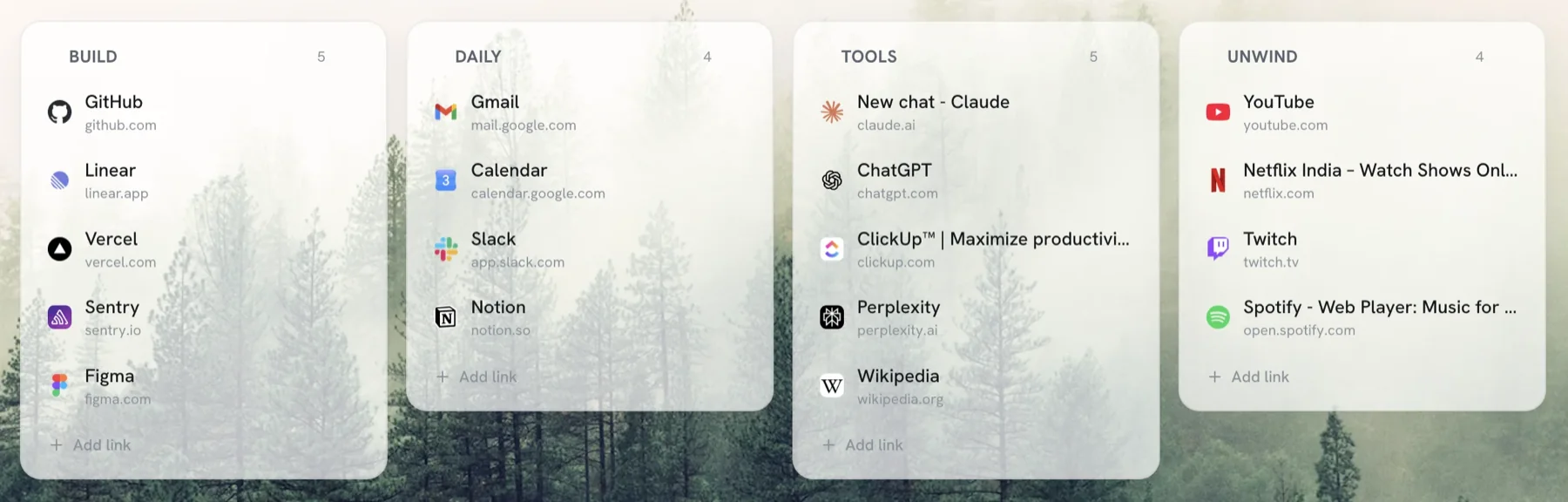
The catch with Chrome's built-in manager is that it lives behind a menu you forget exists, so out of sight means out of mind. A visual bookmark manager like Tabisto takes the opposite approach: it puts your organized bookmarks on the new tab page, so you see them every time you open a tab instead of digging for them. It imports your existing Chrome bookmarks in one step, so you are not starting over.
Either way, the win is findability. Search and sections beat scrolling a flat strip the moment your link count grows.
Where a bookmark manager falls short
Honesty time. A manager you have to open is a manager you will skip. Chrome's hidden bookmark page is the classic example: great features, but the friction of opening it means most people default back to the bar or to retyping searches.
The fix is reducing that friction, which is why new-tab-based managers exist. But even then, a manager is overkill for the three links you open hourly. Those still belong on the bar.
The setup that uses both
You do not have to choose. Run a small, ruthless bookmarks bar on top of a real bookmark manager underneath.
- Put your 5 to 8 most-opened links on the bookmarks bar. No more. If a new one earns a spot, an old one comes off.
- Move everything else into a bookmark manager, grouped into a handful of clear sections.
- Do one cleanup pass first so you are not organizing dead links. Our guide on organizing bookmarks in Chrome walks through that thirty-minute reset.
- If your bookmarks live across several tools or browsers, pick one manager as the home. Our roundup of the best free bookmark manager for Chrome compares the options honestly.
That split keeps your daily links instant and your long tail findable. The bar stays clean because it is no longer pretending to be storage.
Frequently asked questions
Is the bookmarks bar the same as a bookmark manager?
No. The bookmarks bar is the strip under the address bar that holds a few links for one-click access. A bookmark manager is the full tool that stores and organizes your entire collection with folders, search, and sometimes notes. The bar is for speed; the manager is for everything.
How many bookmarks should I keep on the bookmarks bar?
Around 5 to 10. A laptop screen fits roughly that many before labels overflow into a hidden menu. Keep only the links you open most days on the bar, and move the rest into a bookmark manager so the bar stays scannable.
Should I use Chrome's built-in bookmark manager or an extension?
Chrome's built-in manager is fine for a small, tidy set and needs no install. Once you have more bookmarks than you can scan, an extension that puts them on your new tab page is easier to actually use, because you see your links instead of hunting for them in a hidden menu.
Will I lose bookmarks if I switch to a bookmark manager?
No. Importing bookmarks into a manager copies them; the originals stay in Chrome. Tools like Tabisto read your existing Chrome bookmarks in one step, so nothing is deleted and you can keep both while you decide.