How to sync bookmarks across browsers and devices
Your bookmarks should follow you, not stay trapped on one laptop. Here are three ways to keep the same set of bookmarks on every device, from Chrome sync to a manager that works across browsers.

By Yash Kapoor··8 min read
You set up your bookmarks perfectly on your work laptop. Then you open your home machine, or a second browser, and none of it is there. So you re-save a few links, the two sets drift apart, and now you are never sure which device has the bookmark you need.
Syncing fixes that by keeping one source of truth that every device reads from. This guide covers three ways to do it, from the simplest built-in option to a manager that works across different browsers, plus how to keep a backup so you never lose the set.
Why bookmark sync matters
The point of syncing is not convenience for its own sake. It is trust.
When your bookmarks sync, you stop holding a mental map of "the spreadsheet link is on the work laptop, the recipe is on the phone." There is one set, and it is everywhere. You can organize your bookmarks on one device and see the tidy result everywhere else. And if a machine dies or you get a new one, your bookmarks are not gone, because they were never only on that machine.
The catch is that the easiest sync ties you to a single browser. The harder question is what to do when you use more than one browser, which the later options handle. One quick note before that: syncing is about your own devices. If you want to hand a set of links to someone else, see how to share bookmarks in Chrome instead.
Option 1: Chrome's built-in sync
If you use Chrome everywhere, this is the simplest path and you may already have it on.
Sign in to Chrome with your Google account, then go to Settings, then You and Google, then Sync and Google services. Turn on sync, and make sure Bookmarks is included under Manage what you sync. From then on, your bookmarks, and the folders you organize them into, appear on every device where you are signed in to that same Google account.
Strengths. Free, automatic, and zero maintenance once it is on.
The limit. It only syncs within Chrome (and Chrome on your phone). If you also use Edge, Brave, Firefox, or a work browser under a different profile, those bookmarks do not come along. For a single-browser life, though, this is all you need.
Option 2: Export and import bookmarks manually
If you only need to move bookmarks occasionally, or shift them between two different browsers once, the manual export is reliable and free.
In Chrome, open the Bookmark Manager (Ctrl+Shift+O), click the three-dot menu, and choose Export bookmarks. Chrome saves an HTML file with all of them. On the other browser or device, open its bookmark manager and choose Import bookmarks, then pick that HTML file.
Strengths. Works between any browsers, needs no account, and gives you a portable file you can keep as a backup.
The limit. It is a snapshot, not live sync. Changes after the export do not carry over, so this is for one-time moves and backups, not for keeping two devices continuously in step.
Option 3: A cross-browser bookmark manager
When you genuinely live across different browsers or want your bookmarks to be more than a dropdown, a dedicated manager with its own sync is the answer.
A multi-browser bookmark manager stores your bookmarks in its own account and shows them in every browser where you install it. Because the bookmarks live in the tool rather than in one browser's storage, they are not locked to Chrome, Edge, or any single app. You sign in, and the same organized set appears, regardless of which browser you opened.
This is also the option that lets you do more than store links: organize them visually, split them into workspaces, and reach them without hunting through a menu. If you are weighing tools, our roundup of the best free bookmark manager for Chrome compares the cross-browser options side by side.
How to sync bookmarks with Tabisto
Tabisto is a free Chrome new-tab extension that organizes your bookmarks on every new tab, and its sync is built for exactly this problem.
Here is the flow:
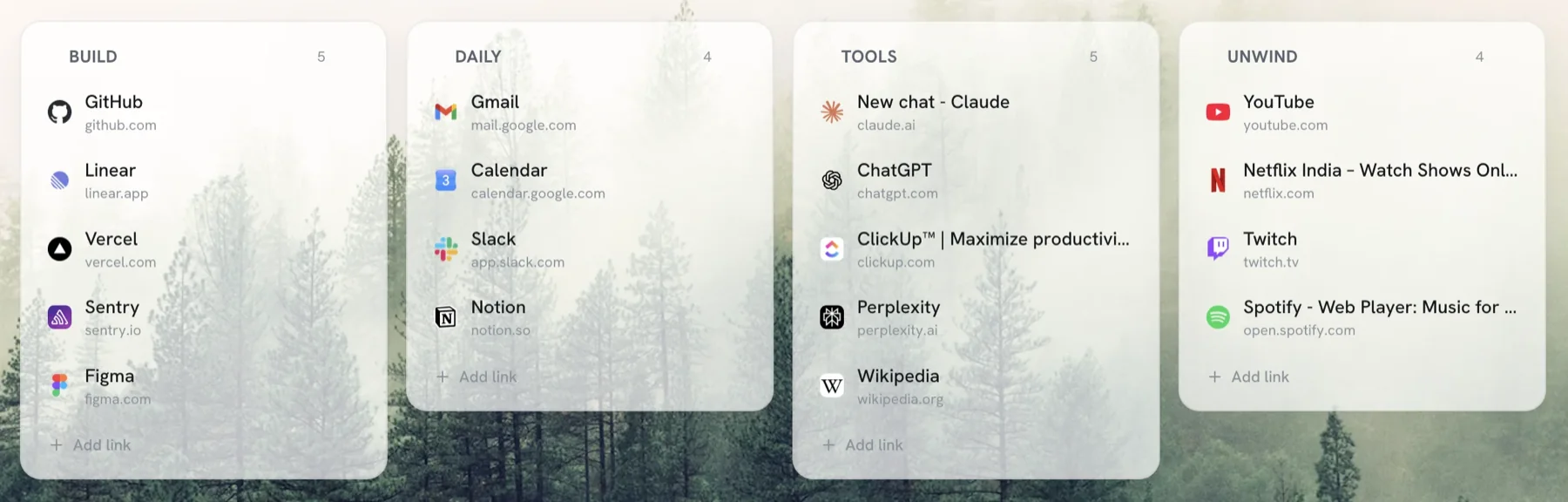
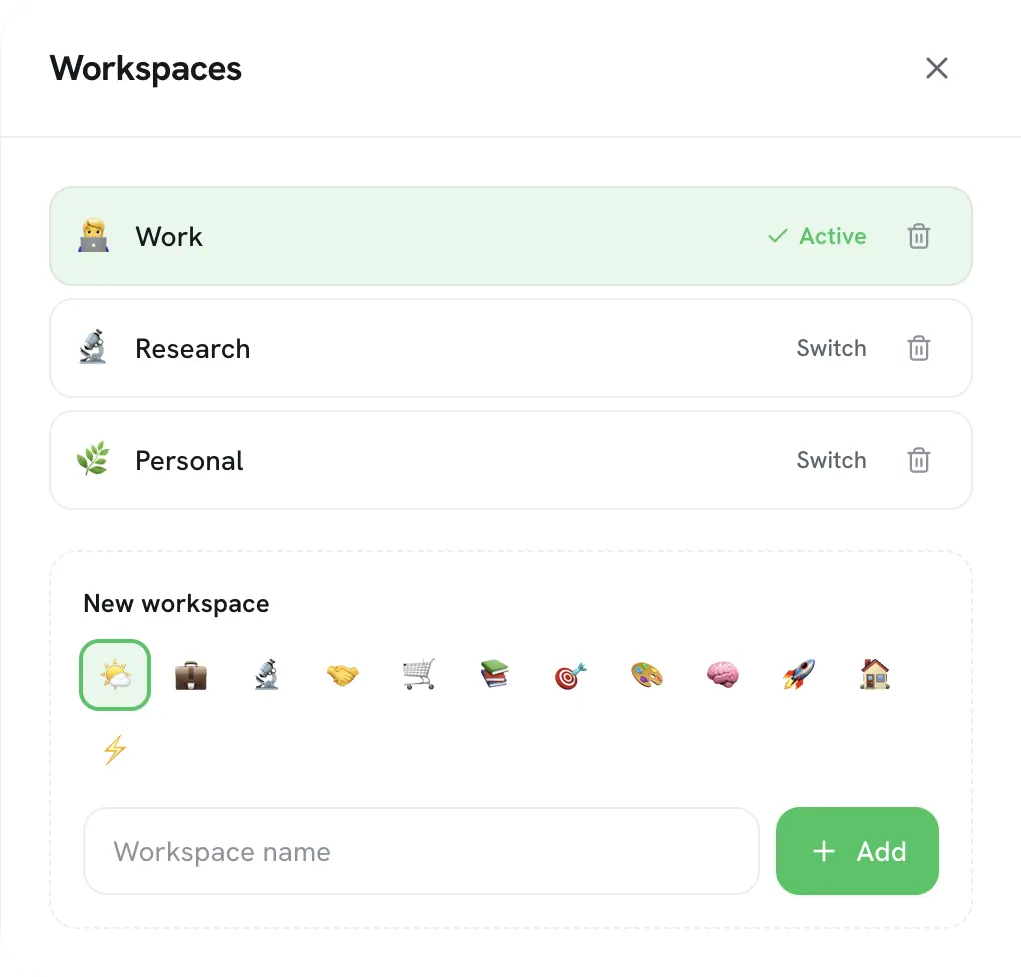
- Install Tabisto and organize your bookmarks into sections and workspaces on the new tab. You can import your existing Chrome bookmarks in one step to start.
- Sign in with Google. That turns on sync.
- Open Tabisto on any other Chrome or Chromium-based browser (including a different profile or a second computer) and sign in with the same account. Your bookmarks, workspaces, notes, and reminders are already there.
A few things worth knowing:
- Sync is free. It works on both the Free and Pro plans, not just paid users.
- It is local-first. Your data lives in the browser and works fully offline. Sync pushes a snapshot to the cloud and pulls it on your other devices, rather than depending on a server for every action.
- It carries more than links. Because Tabisto syncs your whole workspace, your organization travels with you, not just a flat list of URLs.
If your bookmarks currently live in one browser on one machine, this is the step that frees them.
Keep a backup, just in case
Sync is not the same as a backup. Sync keeps devices in step, but if something gets deleted, it deletes everywhere. So keep a periodic snapshot.
The simplest backup is the manual export from Option 2: every month or so, export your Chrome bookmarks to an HTML file and save it somewhere safe. It takes a minute and means a bad sync or an accidental delete can always be undone. If you use a manager with export, do the same with its export feature.
FAQ
How do I sync bookmarks across different browsers?
For the same browser on many devices, turn on built-in sync (in Chrome, sign in and enable Bookmarks under Sync settings). To move between different browsers, either export your bookmarks to an HTML file and import them on the other browser, or use a cross-browser bookmark manager like Tabisto that stores bookmarks in its own account and shows them in every browser you install it in.
Can I sync bookmarks without a Google account?
Within Chrome, sync requires a Google account. To avoid that, use the manual HTML export and import, which needs no account, or a third-party manager with its own sign-in. Tabisto works fully offline with no account and only syncs if you choose to sign in.
What is a multi-browser bookmark manager?
It is a tool that stores your bookmarks independently of any single browser and displays them wherever you install it, so the same set appears in Chrome, Edge, Brave, or another Chromium browser. Tabisto works this way across Chrome and Chromium-based browsers, syncing your bookmarks, workspaces, and notes together.
Will syncing overwrite the bookmarks I already have?
A good sync merges rather than blindly overwrites, but the safe habit is to export a backup HTML file before your first sync between devices. That way, if anything looks wrong, you can restore the original set in a few clicks.
Is it safe to store bookmarks online?
It is, provided the tool is reputable and ideally local-first, meaning your data lives in your browser and only a synced copy goes to the cloud. Tabisto stores everything locally first and keeps sync opt-in, so your bookmarks are not sent anywhere unless you sign in.