How to change your new tab page in Chrome
Chrome quietly removed the simple setting for this, so pasting a URL no longer works. Here is the reliable way to change your Chrome new tab page in 2026, and how to set it back if you change your mind.
By Yash Kapoor··7 min read
The short answer: Chrome no longer lets you set a custom URL as your new tab page from Settings. The supported way to change it in 2026 is to install a new tab extension from the Chrome Web Store, which replaces the page for you. To go back, you remove or disable that extension.
That is the whole mechanism. The rest of this guide explains why the old trick stopped working, how to pick an extension you will not regret, and how to undo it cleanly.
Why you cannot just paste a URL anymore
For years people changed their new tab by pasting a web address into a setting or using a small "custom new tab URL" extension. Google has steadily closed that path. Chrome treats the new tab page as a protected surface, partly for security (a malicious page could hijack every tab you open) and partly because the new tab is prime real estate Google uses for its own search box and shortcuts.
So there is no box in Chrome Settings where you type a URL and get it as your new tab. The new tab page is only changeable through an installed extension that declares it overrides the page. That sounds restrictive, but it is actually the better path: a good extension gives you far more than a redirect to a single website.
The reliable method: a new tab extension
Installing a new tab extension takes about fifteen seconds and survives Chrome updates, unlike the old hacks.
- Open the Chrome Web Store.
- Search for the kind of new tab you want (for example "bookmark manager" or "new tab dashboard").
- Click Add to Chrome, then confirm.
- Open a new tab. It is already replaced. There is no restart and no settings change to make.
Chrome may show a small prompt the first time, asking you to keep the change or revert. Choose Keep it and you are done. From then on, every new tab opens to the extension instead of the default page.
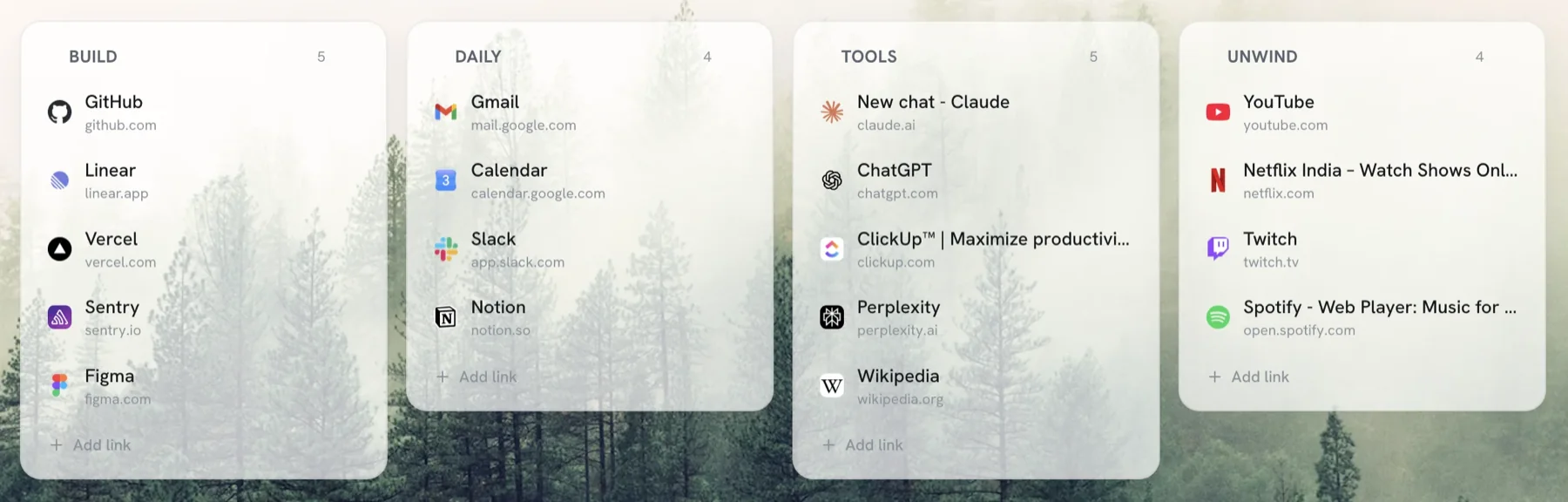
We make one of these, Tabisto, a free visual bookmark manager that turns the new tab into a calm dashboard of your bookmarks, workspaces, notes and reminders. It is local-first, so it loads instantly and works offline, and it imports your existing Chrome bookmarks in one step. It is not the only option, though, which is the point of the next section.
How to pick a new tab extension you will not uninstall in a week
Most people install a flashy new tab extension, enjoy it for three days, then quietly remove it because it got in the way. A few things separate the ones that stick:
- It should be useful, not just pretty. A wallpaper and a clock is nice for a day. Bookmarks, search, and quick notes are useful every time you open a tab.
- It should load instantly. The new tab page opens dozens of times a day. If it fetches a remote photo or runs heavy scripts on every open, you will feel the lag and resent it. Local-first extensions paint immediately.
- It should respect your privacy. A new tab extension sees how often you open tabs. Prefer ones that do not track your links or load favicons through third-party servers.
- The free tier should be real. Many "free" new tab extensions paywall the basics. Check what you actually get for free before you commit your most-opened page to it.
If you want a head-to-head on the options that pass these tests, our guide to the best free bookmark manager for Chrome compares five tools honestly, including where each falls down.
How to set your new tab page back to default
Changed your mind? Reverting is just as easy, because the new tab is owned by the extension.
- Go to
chrome://extensions(paste that into the address bar). - Find the new tab extension.
- Toggle it off to disable it temporarily, or click Remove to uninstall it entirely.
The moment the extension is disabled or removed, Chrome restores its standard new tab page with the Google search box and shortcuts. No reset, no reinstall. If you had several new tab extensions installed, Chrome uses the most recently enabled one, so disable the others to get the one you want.
A note on Edge, Brave, and other Chromium browsers
Because Edge, Brave, and most other Chromium-based browsers share Chrome's extension system, the same method works in all of them: install the extension from the Chrome Web Store (or Edge Add-ons) and it overrides the new tab there too. Each browser also has its own built-in new tab customization in Settings, but those only tweak the default page; to fully replace it you still use an extension. If you move between browsers, a tool that syncs across browsers keeps the same new tab everywhere.
Make the change worth it
Replacing the new tab page is the easy part. Making it genuinely useful is what stops you from reverting. The highest-value move is to get your bookmarks onto it so they are one click away instead of buried in a dropdown you forgot existed. If your bookmarks are a mess to begin with, our walkthrough on organizing bookmarks in Chrome is a good thirty-minute reset before you import them.
Either way, the next tab you open does not have to be a blank page or a search box you ignore. It can be the most useful screen in your browser.
Frequently asked questions
Can I set a custom URL as my new tab page in Chrome?
Not from Settings anymore. Chrome removed the option to type a web address as your new tab page. The supported way to change it is to install a new tab extension from the Chrome Web Store, which overrides the page for you.
How do I change my new tab page in Chrome without an extension?
You cannot fully replace it without an extension. Chrome only lets you tweak the default new tab (its shortcuts and background) from its own settings; replacing the page itself requires an installed extension that declares it overrides the new tab.
How do I get my normal new tab page back?
Open chrome://extensions, find the new tab extension, and toggle it off or click Remove. Chrome restores its standard new tab page immediately, with no reset or reinstall.
Why does my new tab page keep changing?
If more than one new tab extension is installed, Chrome uses the most recently enabled one, so they can appear to fight. Disable the ones you do not want at chrome://extensions and keep only the one you do.
Is it safe to install a new tab extension?
Yes, if you install a reputable one from the Chrome Web Store and check its permissions. A new tab extension can see how often you open tabs, so prefer local-first tools that do not track your links or route data through third-party servers.