How to save and restore tab sessions in Chrome
Saving a session takes about ten seconds, and it lets you close a whole window of tabs and reopen the exact group later with one click. Here are the built-in options, where they fall short, and the cleaner way to do it.
By Yash Kapoor··7 min read
You can save and restore tab sessions in Chrome in two ways: with Chrome's own tools (reopen recent tabs, pinned tabs, and "continue where you left off"), or with a sessions extension that snapshots a named group of tabs you restore on demand. The built-in tools cover "I closed something by accident." A real session manager covers "save these twelve tabs and bring them back next Tuesday."
Most people only know the accident-recovery half. That is why they leave forty tabs open for weeks: closing them feels like losing them. It does not have to.
The fastest built-in recovery
If you just closed a tab or window and want it back, Chrome already has you covered.
- Reopen the last closed tab with Ctrl+Shift+T (Cmd+Shift+T on Mac). Press it repeatedly to walk back through your recent closes.
- Reopen a full window from History (Ctrl+H), under "Recently closed."
- Set Chrome to restore everything on launch: Settings > On startup > Continue where you left off. Your last session reopens every time Chrome starts.
That is enough for accidents and crashes. What it does not do is let you deliberately save a named set of tabs and close them with confidence.
Built-in ways to keep tabs without an extension
Two native features get you partway to real sessions.
Pinned tabs. Right-click a tab and choose Pin. Pinned tabs shrink to the favicon, lock to the left, and reopen on startup. Good for the three or four tabs you always want open. Not built for saving a project's worth.
Tab groups. Right-click a tab, then "Add tab to new group," name it, and color it. You can collapse a group to tuck it away. The limit: groups belong to an open window. Close the window and the group is gone unless "continue where you left off" happens to restore it. They organize what is open now; they do not archive a set for later.
So Chrome can recover tabs and tidy open ones. It cannot cleanly store a named group you close on purpose. That gap is the whole reason session managers exist.
How to save and restore a real session
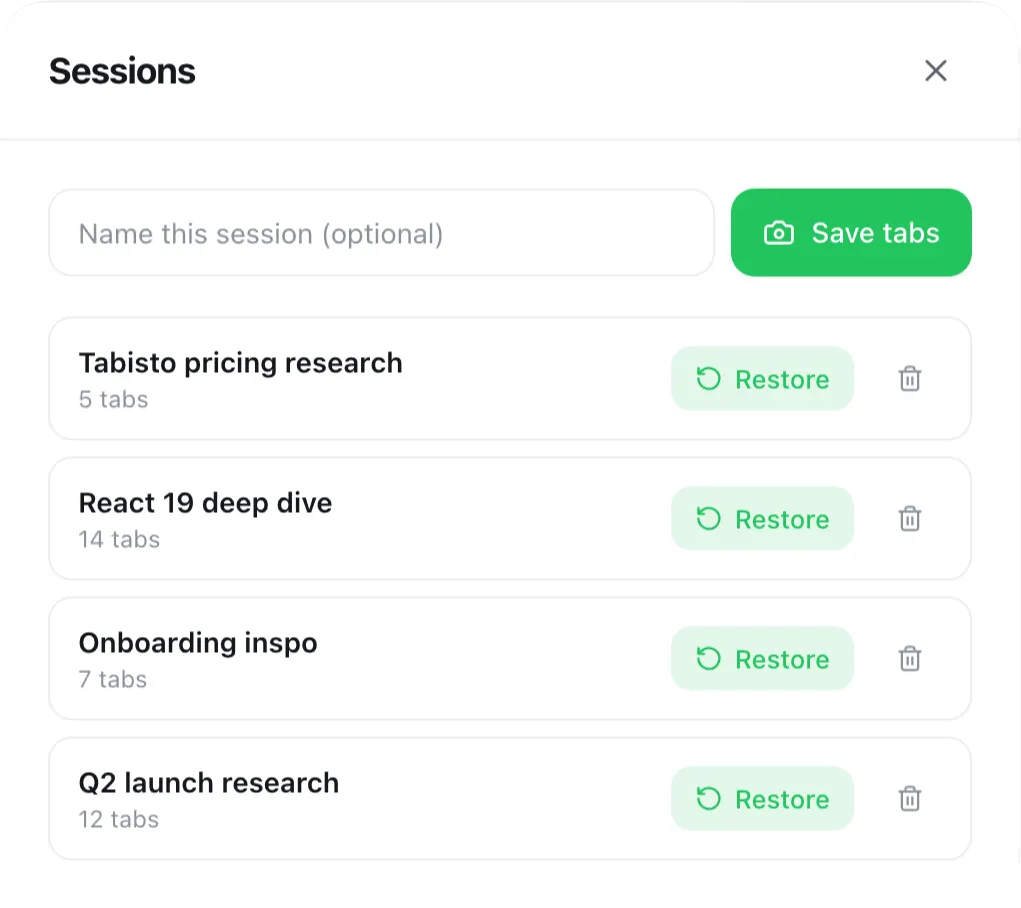
A session manager snapshots a set of tabs under a name so you can close them and restore the whole group whenever you want. The flow with a tool like Tabisto, which keeps saved sessions on your new tab page, looks like this:
- Open the tabs that belong together (a research dig, a client project, your morning routine).
- Save them as a named session in one click, for example "Q3 research."
- Close the tabs. They are stored, not lost.
- Reopen the entire group later with one click from your new tab.
That last step is what pinned tabs and groups cannot do: bring back a deliberately closed set, intact, days later. Tabisto is local-first, so sessions are stored in your browser and restore instantly, and an optional auto-snapshot can capture your window before you close it.
When to use which
Quick rule of thumb. Use the built-in tools for accidents and your always-on tabs. Use a session manager for anything you want to put away and call back.
- Closed something by mistake: Ctrl+Shift+T.
- Three tabs you always want open: pin them.
- Tidy the tabs open right now: tab groups.
- Save a project's tabs to reopen next week: a session manager.
If your tab overload is constant rather than occasional, the deeper fix is in our guide on organizing Chrome tabs. Sessions are the tool; the habit is closing what you are not using and trusting you can get it back.
Frequently asked questions
How do I reopen a closed tab in Chrome?
Press Ctrl+Shift+T (Cmd+Shift+T on Mac) to reopen the most recently closed tab, and press it again to keep reopening earlier ones. For a whole closed window, open History with Ctrl+H and look under "Recently closed."
Does Chrome save my tabs if it crashes?
Usually. After a crash Chrome often offers a "Restore" prompt, and if you set Settings to "Continue where you left off," it reopens your last session on every launch. For tabs you want to keep on purpose rather than recover by luck, save them as a named session.
What is the difference between tab groups and saved sessions?
Tab groups organize tabs inside an open window and disappear when that window closes. Saved sessions store a named set of tabs separately, so you can close them entirely and restore the whole group on demand later. Groups are for now; sessions are for later.
Can I restore a tab session after restarting my computer?
Yes, if the session is saved in a session manager or if Chrome is set to continue where you left off. A snapshotted session persists across restarts and reopens with one click. Relying only on open tabs is riskier, since an update or crash can clear them.