How to organize Chrome tabs and stop tab overload
Forty open tabs is not a system, it is a slow leak of focus and memory. Here is how to get them under control with the tools Chrome gives you, plus a way to close tabs without ever losing them.

By Yash Kapoor··8 min read
If you have ever counted thirty or forty open tabs and felt a small wave of dread, you are not disorganized. You are using the browser the way it nudges you to: open something, mean to come back, never close it. The tabs pile up, each one a little open loop your brain keeps half-tracking.
Too many tabs is not just visual noise. It eats memory, slows the browser, and makes the one tab you actually need impossible to find. This guide covers how to organize Chrome tabs with the built-in tools first, then a calmer system for people who keep hitting the same wall.
Why too many tabs is a real problem
It helps to name what is going wrong, because the fix follows from it.
Every open tab is a small cost. It uses RAM, which is why Chrome starts to feel heavy past a certain point. It splits your attention, because a row of forty favicons is forty unfinished things in your peripheral vision. And it destroys findability: when every tab is squeezed to a sliver, the tab you want is a needle in a haystack you built yourself.
The goal is not zero tabs. It is to keep only what you are actively using open, and to have a trusted place for everything else so closing a tab does not feel like losing it.
Use Chrome tab groups to cluster related tabs
Tab groups are Chrome's built-in answer, and most people never turn them on.
Right-click any tab and choose Add tab to new group. Give it a name and a color. Now drag related tabs into that group. You can collapse a group by clicking its label, which tucks all those tabs behind a single colored chip and reclaims most of the strip.
Good groups map to what you are doing right now: a colored "Invoices" group, a "Trip planning" group, a "Bug 4012" group. Collapse the ones you are not touching. The strip goes from forty loose tabs to four tidy chips, and you can expand any one in a click.
If sorting them by hand feels like too much, Chrome can do a first pass for you. Click the down arrow at the top right of the tab strip and choose Organize tabs, and Chrome reads your open pages and suggests named groups you can accept in one click. The same down-arrow menu has a tab search box, so you can type a few letters to jump to any open tab instead of squinting at forty tiny favicons.
Tab groups are great for a working session. Their limit is that they live in one window and vanish if you close it, which is where the next steps come in.
Pin the tabs you never want to lose
Some tabs are not tasks, they are fixtures. Your email, your calendar, your music, the dashboard you check all day.
Right-click those and choose Pin tab. Pinned tabs shrink to just their favicon and lock to the left of the strip. They reopen automatically when you start Chrome, so the apps you live in are always in the same spot, and they never get lost in the churn of everything else.
Keep this list short. Five or six pins is plenty. If you pin twenty things, pinning stops meaning anything.
Close duplicates and dead tabs ruthlessly
Before any system can help, you have to cut the dead weight.
Open Chrome's tab search by clicking the small downward chevron at the far right of the tab strip, or press Ctrl+Shift+A. It lists every open tab in a searchable menu, which makes it easy to spot duplicates and things you forgot were open. Close anything you are not actively using.
Be honest about "I'll read it later" tabs. A tab is the worst possible to-do list. If you genuinely want to keep something, bookmark it or save the group, then close the tab. Leaving it open does not make you more likely to return to it. It just slows you down today.
Save a group of tabs instead of leaving them open
Here is the habit that breaks tab overload for good: stop using open tabs as memory.
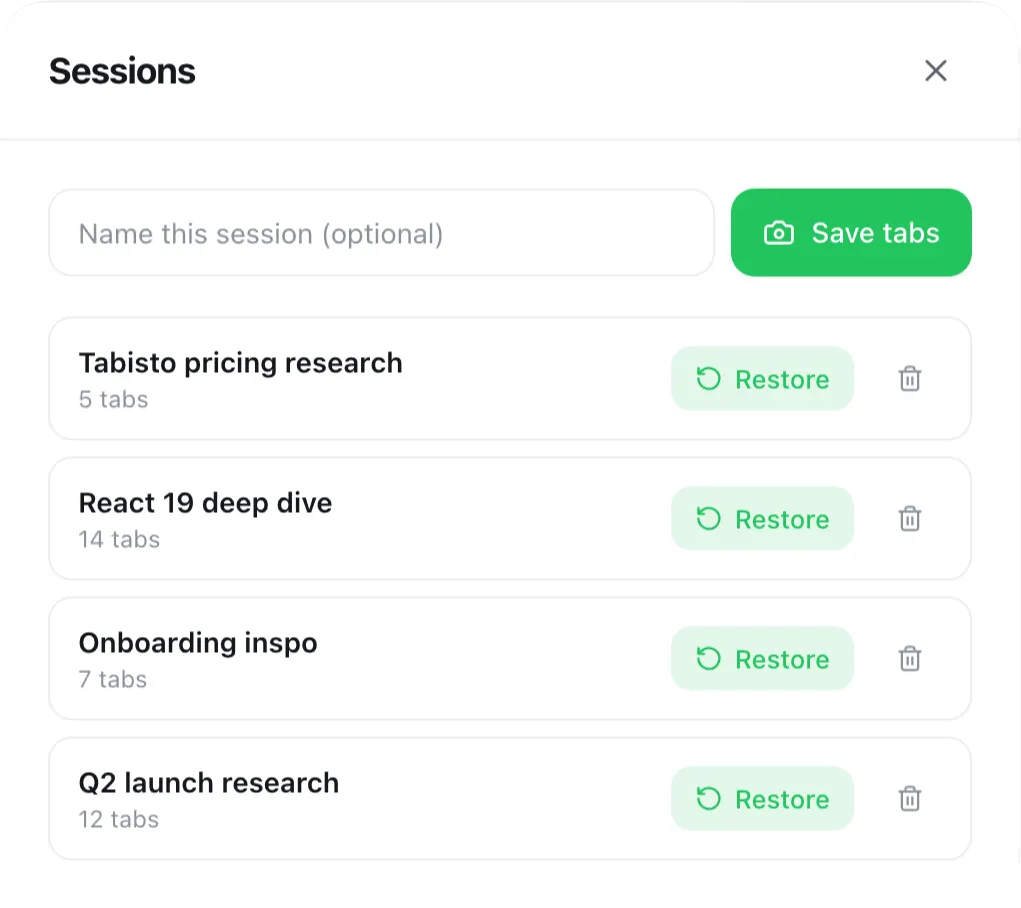
The reason people hoard tabs is fear. Close the eleven tabs for a project and you might lose your place. So the real fix is a reliable way to save a working set and bring it all back later. Chrome can reopen your last session, but it does not let you save and name specific groups of tabs to restore on demand.
That is the gap a saved-sessions tool fills, and it is the single biggest change you can make. Our guide on how to save and restore tab sessions in Chrome walks through every method. Once you trust that a project's tabs are one click away, closing them stops feeling like a loss and starts feeling like clearing your desk.
Give each project its own space
Even with groups and pins, one window doing everything gets noisy. Work links sit next to personal ones, and a research rabbit hole crowds out your daily tools.
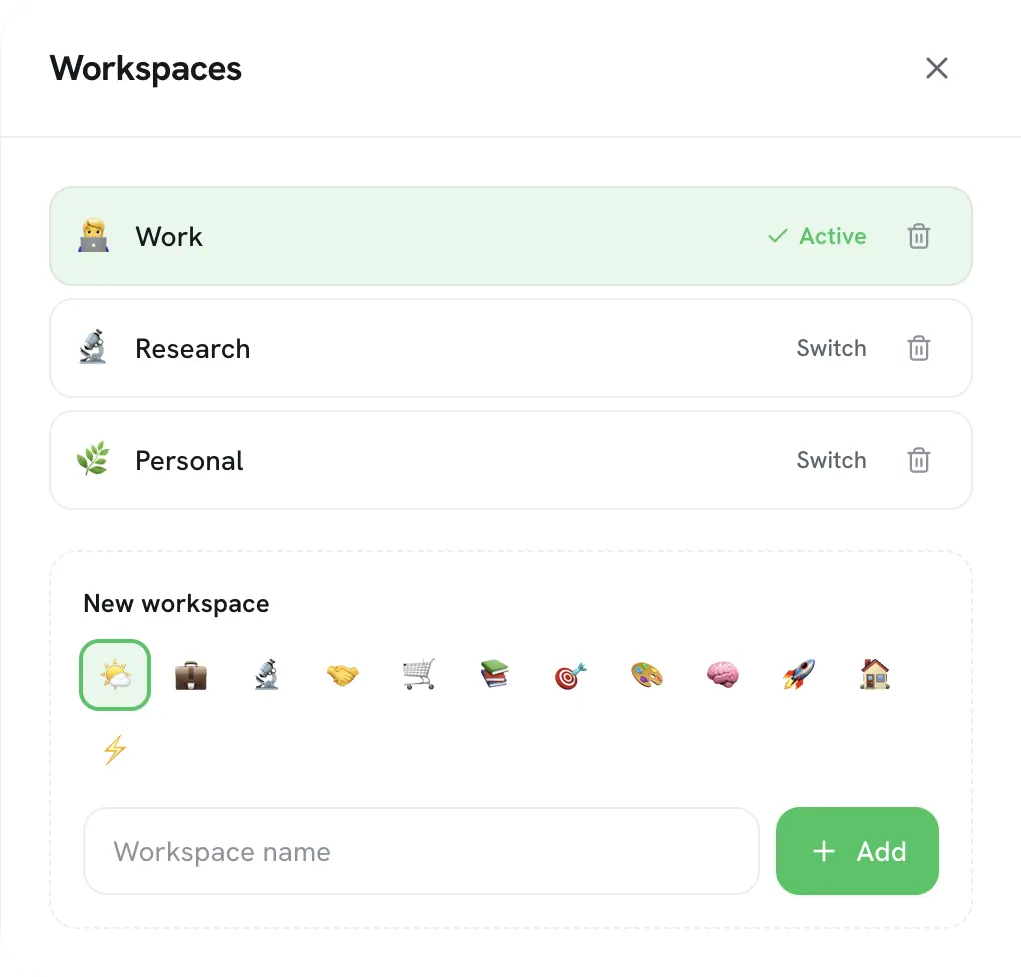
Separating contexts fixes this, and it is the whole idea behind Chrome workspaces for work and personal browsing. The idea is simple: your work browsing and your personal browsing should not share the same cluttered strip. When you switch to a project, you want its tabs and bookmarks, and none of the noise from everything else. When you switch back, the project waits exactly as you left it.
A calmer setup: your tabs and bookmarks on the new tab
The built-in tools work, but they are scattered. Groups live in the strip, bookmarks live in a dropdown, and your last session lives in a menu you rarely open. There is no single calm place that holds all of it.
That is the gap Tabisto, a free Chrome new-tab extension, is built to close. Instead of managing tabs in the cramped strip, you get a full dashboard on every new tab:
- Saved sessions snapshot a window of tabs as a named group. Close them now, reopen the whole set with one click tomorrow. This is the piece Chrome is missing.
- Workspaces give each project or context its own board of bookmarks and sessions, so Work and Personal never crowd each other.
- Visual bookmarks put the links you keep reopening in clean sections, so you stop opening five tabs just to get back to five sites. If your bookmarks are a mess, start by organizing your Chrome bookmarks.
- It is local-first, loads instantly, and only replaces the new tab page, so it does not slow down the browsing it is helping you organize.
You do not have to choose between this and Chrome's tools. Use tab groups and pins for the tabs open right now, and let saved sessions and workspaces hold everything you would otherwise keep open out of fear. The result is a browser with five tabs instead of forty, and nothing actually lost.
FAQ
How do I organize my Chrome tabs?
Cluster related tabs into named Chrome tab groups (right-click a tab, Add tab to new group) and collapse the ones you are not using. Pin the handful of tabs you always want open. Close duplicates with the tab search menu (Ctrl+Shift+A). For tabs you keep "just in case," save them as a session or bookmark and close them, so the strip only holds what you are actively using.
Why does Chrome get slow with many tabs open?
Each open tab consumes memory and, for active pages, some processing. Past a few dozen tabs that adds up, and Chrome feels sluggish. Closing tabs you are not using, and saving the ones you want to keep instead of leaving them open, is the most direct fix.
How can I close tabs without losing them?
Save them first. Bookmark a single page, or use a saved-sessions tool like Tabisto to snapshot a whole window of tabs as a named group. You can then close the tabs and reopen the entire group later with one click, so closing them costs you nothing.
What is the difference between tab groups and saved sessions?
Tab groups organize tabs that are open right now, inside one window, and they disappear when you close that window. Saved sessions store a named set of tabs so you can close them entirely and restore the whole group on demand, days later. Groups are for the current moment, sessions are for coming back.
Is there a Chrome extension to manage tabs and bookmarks together?
Yes. Tabisto replaces the new tab page with a dashboard that holds visual bookmarks, separate workspaces, and saved tab sessions in one place. It is free, local-first, and works offline, so you can organize both your tabs and your bookmarks without juggling several tools.