Chrome workspaces: how to separate work and personal browsing
Keeping work and personal browsing apart in Chrome comes down to two layers: profiles for accounts and history, and workspaces for your bookmarks and tabs. Here is how to set both up so the two stop bleeding into each other.
By Yash Kapoor··7 min read
To separate work and personal browsing in Chrome, use two layers. Chrome profiles split your accounts, history, extensions, and saved passwords into separate worlds. Workspaces, on top of that, split the thing you touch most: your bookmarks and tabs. Profiles handle the account-level divide. Workspaces handle the day-to-day one.
Most people set up a work profile, feel organized for a week, then watch their personal links creep back into their work tabs anyway. The profile split is real but coarse. The finer divide is what actually keeps you focused.
Layer 1: Chrome profiles
A Chrome profile is a fully separate browser identity. Each profile keeps its own bookmarks, history, extensions, passwords, and signed-in Google account. Switching profiles is the cleanest hard line between work and personal.
- Click your profile picture at the top right of Chrome.
- Choose Add and create a second profile (for example, Work).
- Sign that profile into your work Google account, and keep your personal account in the other.
- Pin each profile to your taskbar or dock so you can open the right one directly.
This stops the obvious leaks: work history out of your personal account, personal logins out of your work machine. What it does not do is organize the links and tabs inside each profile. That is the part people actually feel.
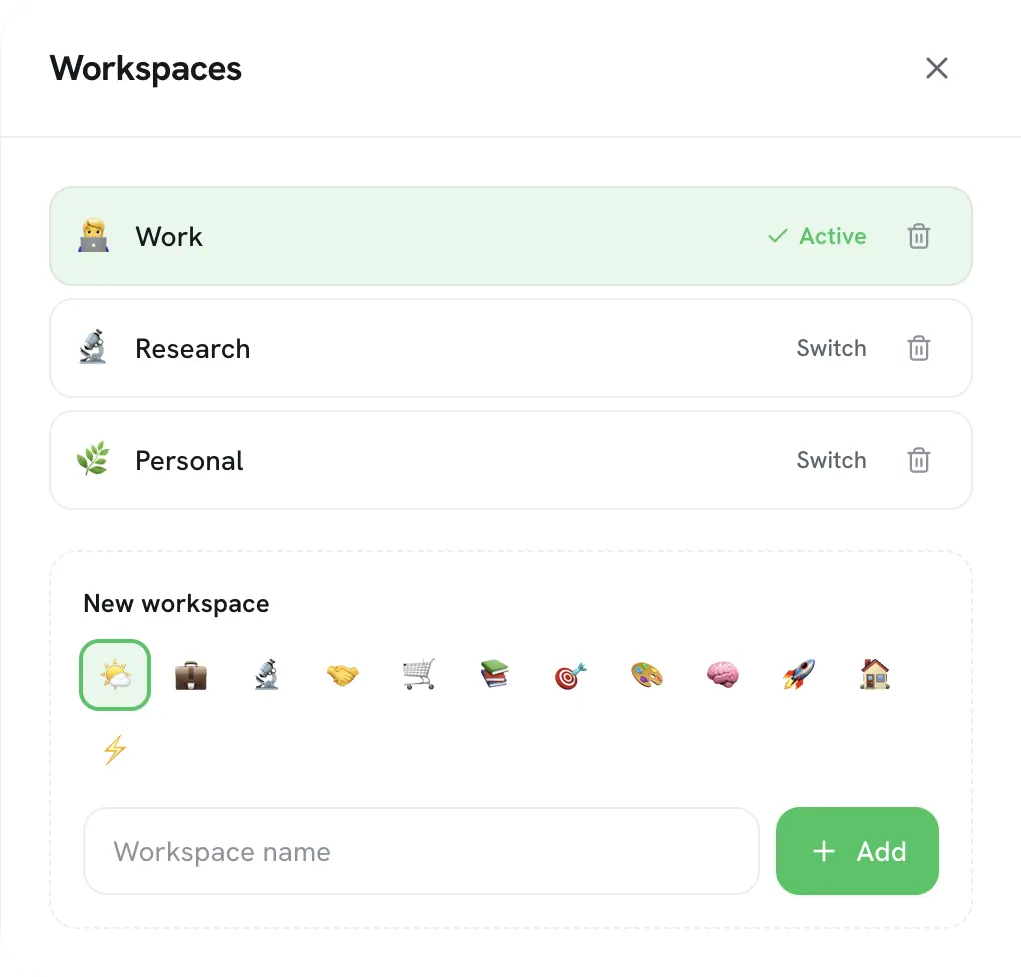
Layer 2: workspaces inside the new tab
Profiles separate accounts. Workspaces separate context. A workspace is a named space with its own bookmarks, sections, and often its own tabs and notes, so "Work," "Personal," and "Side project" each get a clean home you switch between in one click.
Chrome does not have a true built-in workspace feature for bookmarks; profiles and tab groups are the closest native pieces. A new-tab tool like Tabisto adds real workspaces on top: each one holds its own bookmarks and sections, and switching is a single click on your new tab. So your client links never sit next to your personal reading, even in the same profile.
The practical win is focus. When you open a tab in your work context, you see only work. The unrelated stuff is one switch away, not in your face.
Profiles vs workspaces: which to use
You do not pick one. They stack.
| Chrome profiles | Workspaces | |
|---|---|---|
| Separates | Accounts, history, passwords | Bookmarks, tabs, context |
| Granularity | Coarse, whole browser | Fine, per context |
| Switch cost | Open another window | One click on the new tab |
| Best for | Work vs personal accounts | Projects and daily contexts |
Use profiles for the hard account line. Use workspaces for the contexts inside a profile, like separating two clients or work-mode from reading-mode.
A real example: one laptop, two lives
Say you freelance. Mornings are client work, evenings are your own projects and the usual personal browsing. On one profile with one bookmarks bar, those bleed together fast: a client's staging link sits next to your bank, your invoicing tool next to a YouTube tab.
Two profiles draw the first line. Work profile signs into your work Google account and holds work extensions; Personal holds the rest. Already the accounts and history stop mixing.
Inside the Work profile, two workspaces do the finer split: one per client. Client A's docs, dashboards, and repo live in workspace A; Client B in workspace B. You switch clients in one click on the new tab, and you are not staring at the other client's links while you work. When the workday ends, you switch to the Personal profile and none of it follows you. That is the setup most people reach for once they feel the mixing.
Workspaces vs tab groups: not the same thing
People confuse these. Tab groups organize tabs that are open right now, inside one window, and they vanish when the window closes. A workspace is durable: it holds bookmarks and context that persist whether or not the tabs are open.
Use tab groups to tidy a live session. Use workspaces to keep your Work and Personal links permanently apart. They stack fine, but a tab group is not a substitute for a workspace, and treating it like one is why people lose their grouping every time Chrome restarts.
A setup that holds up
Here is a split that survives past the first week.
- Two profiles: Work and Personal. Hard line for accounts.
- Inside each, a few workspaces for your real contexts, not a dozen. Fewer is easier to keep.
- Put each context's active links in its workspace, and keep your new tab on the workspace you are actually in.
- For tabs you want to put away rather than keep open, save them as a session. Our guide on saving and restoring tab sessions covers that.
If your tabs are the bigger mess, start with organizing Chrome tabs. Workspaces keep contexts apart; sessions keep each context's tab count sane.
Frequently asked questions
Does Chrome have workspaces?
Chrome has profiles and tab groups, but not a full built-in workspace feature for bookmarks. Profiles separate whole browser identities, and tab groups organize open tabs in a window. For switchable workspaces that each hold their own bookmarks and tabs, people use a new-tab extension that adds them on top of Chrome.
What is the difference between a Chrome profile and a workspace?
A profile is a separate browser identity with its own accounts, history, extensions, and passwords. A workspace is a lighter context inside your browsing that holds its own bookmarks and tabs. Profiles draw the hard line between work and personal accounts; workspaces split contexts you switch between often.
How do I separate work and personal browsing in Chrome?
Create two Chrome profiles, one for work and one for personal, and sign each into the right Google account. Then, inside each profile, use workspaces to keep different contexts' bookmarks and tabs apart. Profiles handle the account split; workspaces handle the day-to-day one.
Can I switch workspaces without opening a new window?
Yes. Switching profiles opens a separate window, but workspace tools that live on the new tab page let you switch context with a single click in the same window. That makes workspaces faster to move between than profiles for everyday context switching.