How to organize bookmarks in Chrome
Most people save bookmarks and never see them again. This guide walks through the Chrome tools that already exist, then shows a faster way to keep them organized for good.

By Yash Kapoor··9 min read
Almost everyone hits the same wall. You save a link "for later," later never comes, and a year on you have eight hundred bookmarks you cannot search through. The bookmarks bar is a row of favicons you no longer recognize. Finding anything means scrolling a dropdown that runs off the bottom of the screen.
The good news: Chrome already gives you most of the tools to fix this. You do not need a new app to get organized. You do need a system, and about thirty minutes. This guide covers the built-in way first, then a faster setup for people who want their bookmarks to actually stay organized.
Open the Chrome bookmark manager
Everything starts here. There are three ways in:
- Press Ctrl+Shift+O on Windows or Cmd+Option+B on Mac.
- Type
chrome://bookmarksin the address bar and hit enter. - Click the three-dot menu, then Bookmarks and lists, then Bookmark Manager.
The Bookmark Manager is a full-page view of everything you have saved. The left side shows your folders. The main area shows the bookmarks inside the folder you have selected. This is where the cleanup happens, so keep it open for the rest of the guide.
One button worth knowing before you start: the Organize menu in the top right can sort the current folder by name, by URL, or by date added. Sorting a messy folder alphabetically first often makes the duplicates and dead links jump out, so it is a quick head start on the steps below.
Step 1: Delete before you organize
Do not sort first. Sorting a pile of dead links just gives you neatly arranged junk.
Go through your bookmarks once and delete anything you will not open again. Articles you already read. Tools you stopped using. That tutorial you bookmarked in 2022 and finished in an afternoon. Right-click a bookmark and choose Delete, or select several with Ctrl-click and remove them in one go.
Be honest here. If you have not opened a link in a year and you cannot remember what it was, it is gone. You will not miss it. Most people cut their bookmark count by half in this single pass, and everything after this gets easier.
Step 2: Decide on a small set of folders
The biggest mistake is too many folders. If you create thirty, you will spend more time deciding where a link goes than it would take to just search for it later.
Aim for five to eight top-level folders that match how you actually live, not how you think you should. Common ones that work:
- Daily for the handful of sites you open every single day.
- Work for job or client links.
- Reading for things you genuinely plan to read soon.
- Tools for apps and dashboards you return to.
- Reference for documentation and how-tos.
In the Bookmark Manager, click the three-dot menu in the top right and choose Add new folder. Name it. Repeat for your handful. You can nest a folder inside another for sub-groups, but resist going more than one level deep. Deep folder trees are where bookmarks go to be forgotten.
Step 3: Move bookmarks into folders
Now drag. In the Bookmark Manager you can drag a bookmark straight onto a folder in the left sidebar, or select a batch with Ctrl-click and drag them together.
Work top to bottom through your remaining bookmarks and drop each one into the folder where you would actually look for it. Trust your first instinct. If a link could fit two folders, pick the one you would check first when you are in a hurry.
A useful trick: sort by name or by date added first. Click the three-dot menu and choose your sort order. Grouping similar links together makes them faster to move in batches.
Step 4: Put your real daily links on the bookmarks bar
The bookmarks bar is the strip directly under the address bar. It is the fastest place to reach a link, so it should hold only the things you open constantly.
Turn it on with Ctrl+Shift+B (or Cmd+Shift+B on Mac) if it is hidden. Then drag your five to ten most-used links onto it, or move your Daily folder there so it sits as a single dropdown.
To fit more without clutter, rename bar items to something short, or remove the name entirely so only the favicon shows. Right-click an item, choose Edit, and clear the Name field. A row of clean favicons holds far more than a row of full titles.
Step 5: Use folders on the bar for grouped access
You can drop whole folders onto the bookmarks bar, not just single links. A folder on the bar becomes a dropdown.
This is the sweet spot for grouped access. A "Work" folder on the bar gives you every work link in one click without eating the whole strip. Put two or three folders on the bar and you have most of your bookmarks reachable in two clicks, with the strip still looking calm.
Step 6: Keep it organized with a quick weekly habit
Organizing once is easy. Staying organized is the hard part, and it is mostly about catching new links before they pile up.
Two habits keep the system alive:
- When you save a new bookmark, take the extra two seconds to drop it in the right folder instead of leaving it loose. Chrome lets you pick the folder right in the save popup.
- Once a week, glance at your loose bookmarks and either file them or delete them. It takes a minute when you do it often, and it never becomes another all-day cleanup.
That is the entire built-in method. Folders, a tidy bar, and a small weekly habit will keep most people organized indefinitely.
A faster way: organize bookmarks on your new tab
Here is the honest limitation of the built-in approach. Chrome's folders are dropdowns and a manager page you have to open on purpose. They work, but they are tucked away. Out of sight tends to mean out of mind, which is why bookmark piles come back.
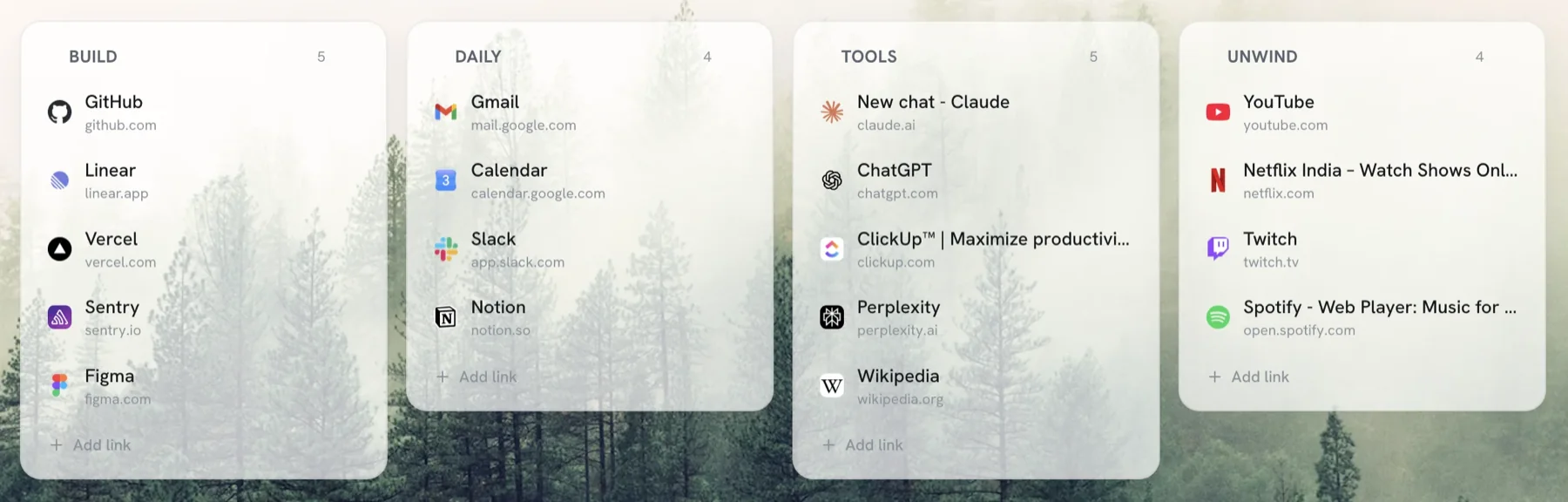
A different approach is to put your bookmarks where you already look dozens of times a day: the new tab page. That is what Tabisto, a free visual bookmark manager for Chrome, does. Instead of a hidden folder tree, your bookmarks live as a clean grid of sections on every new tab. It is one way to change your new tab page in Chrome, and the case for laying links out this way is covered in visual bookmarks vs folders.
What changes in practice:
- You see your bookmarks instead of searching for them. Sections like Daily, Work, and Reading are laid out visually with real favicons, so the right link is in front of you the moment you open a tab.
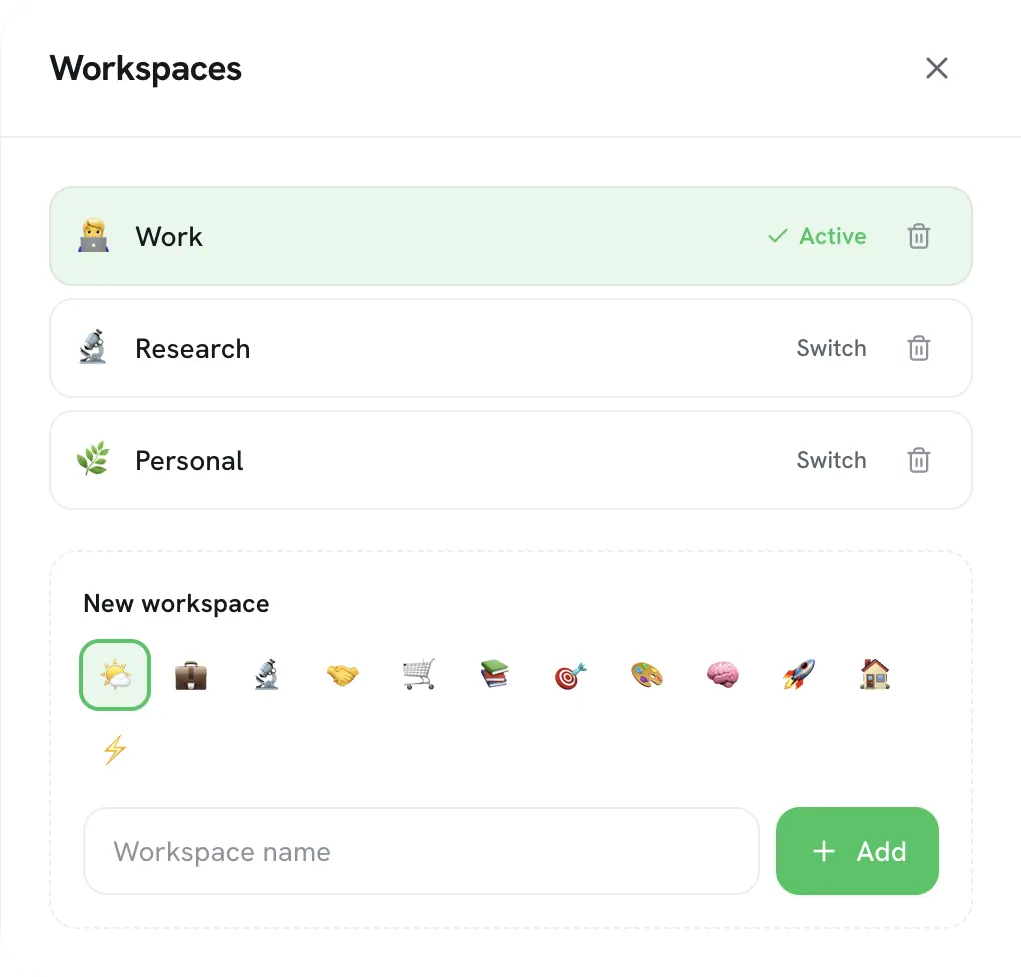
- Workspaces keep contexts apart. Personal links and work links live in separate workspaces you switch with one click, instead of crowding the same bar.
- Import takes one step. Tabisto reads your existing Chrome bookmarks directly, so the folders you just cleaned up come straight in. Nothing is lost.
- It stays out of your way. It is local-first, loads instantly, and only replaces the new tab page, so it does not slow down the rest of your browsing.
You do not have to choose one or the other. Clean up your Chrome bookmarks with the steps above, then import them into Tabisto if you want them visible and organized without ever opening a manager page again. The free plan covers a real setup with no account required. Once they are tidy, you can sync your bookmarks across browsers and devices so the same organized set follows you everywhere.
FAQ
How do I organize bookmarks in Chrome quickly?
Open the Bookmark Manager with Ctrl+Shift+O (Cmd+Option+B on Mac), delete the links you no longer need, create five to eight folders that match how you work, then drag your remaining bookmarks into them. Put your most-used links on the bookmarks bar for one-click access. The whole pass takes about thirty minutes.
How many bookmark folders should I have?
Fewer than you think. Five to eight top-level folders is enough for most people. Too many folders makes filing slow and decisions hard, which is the main reason bookmark systems fall apart. Keep nesting to one level deep at most.
Is there a better way to organize bookmarks than Chrome folders?
Chrome folders work, but they are hidden behind a dropdown and a manager page. Many people stay more organized by putting bookmarks on the new tab page instead, where they see them every time they open a tab. A visual bookmark manager like Tabisto lays your bookmarks out in sections and workspaces on every new tab and imports your existing Chrome bookmarks in one step.
How do I clean up hundreds of old bookmarks?
Do a single deletion pass before you sort anything. Open the Bookmark Manager, sort by date added, and remove anything you have not opened in a year or no longer recognize. Most people cut their bookmark count in half this way, which makes the actual organizing much faster.
Will I lose my bookmarks if I reorganize them?
No. Moving and foldering bookmarks does not delete them, and Chrome syncs your bookmarks to your Google account if you are signed in, so the same organized set follows you to other devices. If you import them into a tool like Tabisto, the originals stay in Chrome untouched.